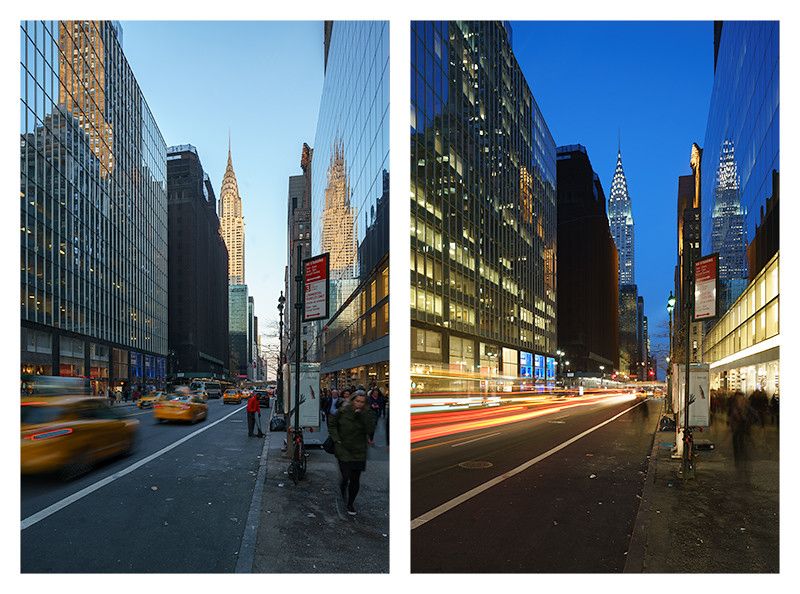
Set white balance for the light on your subject, then keep it fixed for all the angles you plan to cut together. If you move the subject into different light, set a new reference. This prevents the iPhone from changing the color of a scene just because a warm lamp or a bright window takes up more of the next frame.
Keep the color steady during a take
In Apple’s Camera app, open Settings, then Camera, then Record Video, and turn on Lock White Balance. Frame the subject in their actual light before you start. This setting keeps white balance steady during recording. It doesn’t give you a way to enter the same temperature for a separate take. If the close-up and wide shot must match, use a camera app with manual white balance.
Use the same temperature and tint for matching angles
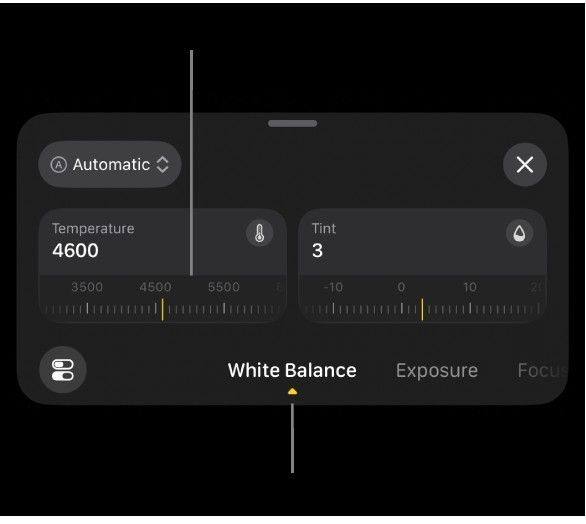
In Final Cut Camera, open Adjustments and swipe to White Balance. Pick a preset or use the Temperature and Tint dials. Hold a neutral gray card beside the subject, facing the camera and in the same light. Adjust until it looks neutral, then use the same setting for the wide shot and close-up. Apple notes that these adjustments are unavailable while recording ProRes RAW. Adjust that footage’s white balance in a compatible editor.
Reset the reference when the light changes
If a face is lit by a window and a desk lamp makes the background warm, balance for the face. If the lamp also colors one side of the face, a single white balance won’t neutralize both sides. Move the lamp or change which light falls on the subject. Record a short test with the gray card after the change, then compare the clips side by side on the same screen.