A hand moves across the frame. In one take, the fingers leave a soft trail. In another, every position looks sharply separated. Both clips can be recorded at 24 frames per second. The difference may be the time each frame was exposed.
Frame rate and shutter speed shape different parts of motion. Choosing them together gives you more control over how a walk, a passing train or a quick camera move feels on screen.
Two clocks inside the same shot
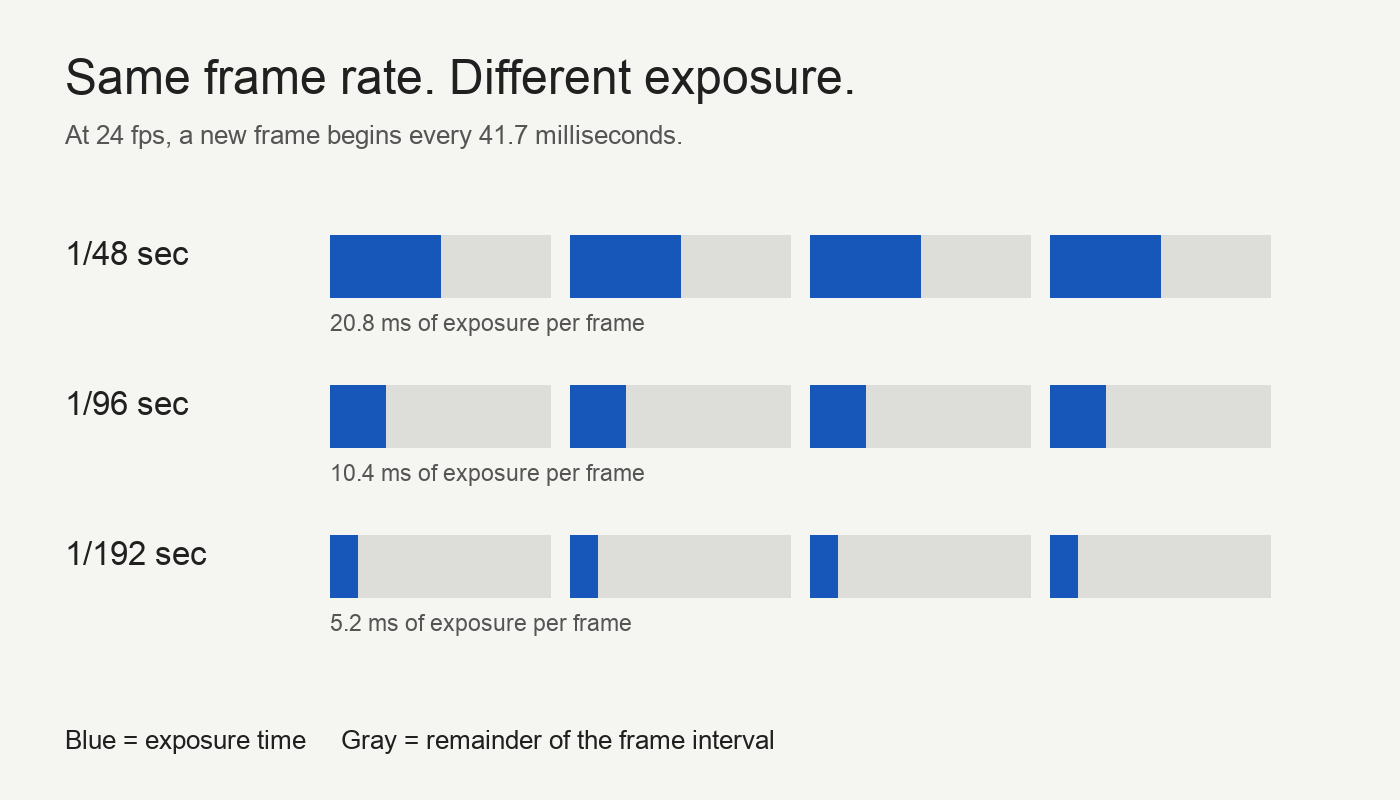
Frame rate counts the images recorded each second. At 24 fps, a new frame begins roughly every 41.7 milliseconds. At 60 fps, that interval is about 16.7 milliseconds. Shutter speed describes the exposure time within each interval. A setting of 1/48 second gives each frame about 20.8 milliseconds to collect light.
Keep the frame rate fixed and shorten the exposure: moving edges become more distinct within each frame, but the camera has not recorded any additional moments. Increase the frame rate and play it back at that same higher rate: you have more samples of movement each second. A sharper individual frame and more frequent frames are different things.
Adobe: how frame rate and shutter speed relate
What shutter speed should you use at 24 fps?
A 180-degree shutter exposes each frame for half its interval. That gives 1/48 second at 24 fps, 1/50 at 25 fps, 1/60 at 30 fps and 1/120 at 60 fps. If the camera offers shutter angle, 180 degrees keeps that relationship as you change frame rate. With shutter speed, you adjust the fraction yourself; 1/50 is a close starting point when 1/48 is unavailable.
This is a convention, not a requirement. Shorter exposures can give movement a harder, more abrupt character. Longer exposures allow more blur. Neither setting supplies good lighting, considered framing or a reason for the camera to move.
In bright daylight, an ND filter can reduce the light reaching the sensor while you keep your chosen shutter setting. Adjusting shutter speed merely to darken the shot also changes its motion rendering.
Nikon: shutter angle, motion blur and exposure
Decide which shots will become slow motion
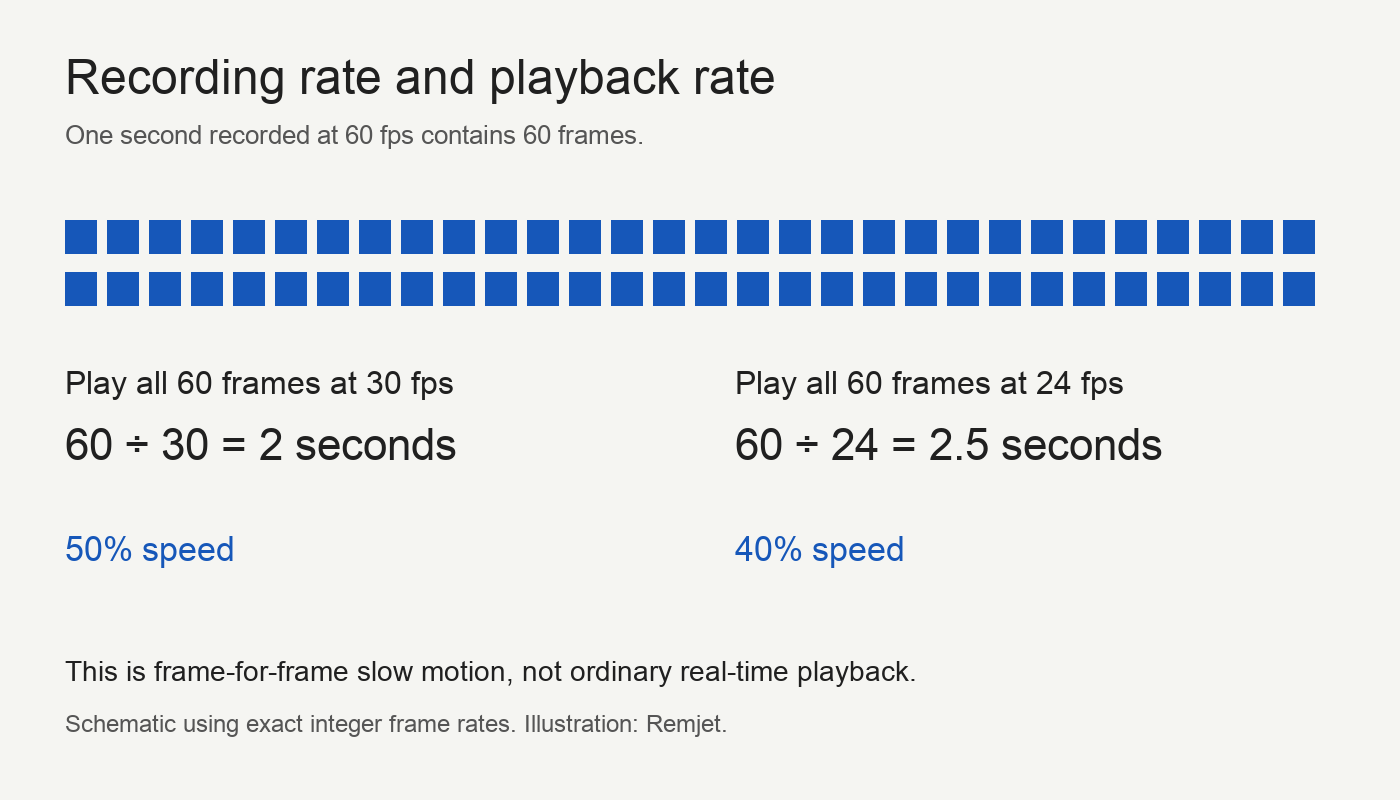
Recording at 60 fps does not require slow playback. For frame-for-frame slow motion, the editor plays those captured frames at a lower rate. Sixty frames shown at 30 fps last two seconds; shown at 24 fps, they last two and a half seconds. These examples use exact integer rates. Match the actual recording and project rates when working with settings such as 23.976 or 59.94.
An editor may preserve normal speed when you drop a higher-rate clip onto a lower-rate timeline. Apply the appropriate conform or retiming setting deliberately. Apple describes this frame-for-frame treatment as Automatic Speed in Final Cut Pro.
Apple: changing clip speed and using Automatic Speed
Check the lights before the take
Artificial lighting can force a compromise. Sony recommends trying 1/50 or 1/100 second in 50 Hz regions, and 1/60 or 1/120 in 60 Hz regions, to reduce flicker. Choose a setting your recording frame rate permits. LEDs and dimmers can behave differently, so a matching fraction is not a guarantee. Record a test under the actual lights and inspect it for pulsing or bands before committing to the shot.
Sony: reducing flicker in still images and movies
Try it with one repeatable movement
Find steady daylight and keep the camera still. Use a recording mode that lets you set frame rate and shutter speed manually. Film the same hand movement or person walking through the frame at 24 fps and approximately 1/48 second. Then repeat at 1/200 second. Keep focus, white balance and framing consistent, and compensate for the shorter exposure so brightness does not dominate the comparison.
Watch both clips at normal speed before pausing them. Look at the moving edges, then at the way the action connects from frame to frame. The second take should reveal why a crisp paused image is not always the motion you want. Use the result to choose your next shot, rather than treating one fraction as a permanent rule.
For a separate decision about how your iPhone captures color, see when to use Log video on an iPhone.